How to Improve SEO on Squarespace
Squarespace offers various SEO features for site owners, but it takes a bit of know-how to get the best use from them (and other tools) for ranking well on search engine results pages. This guide will cover ways to improve your existing SEO strategy. For basic SEO instructions and tips for beginners—including the use of tools like Google Analytics—refer to our list of Squarespace SEO Tips.
Improve Your Site's Technical SEO
A Squarespace SEO audit will reveal technical issues that could be damaging your website’s performance in organic search. You can use free tools like Google Search Console and paid tools like SEOSpace (a Chrome extension) to audit your Squarespace website and identify areas for improvement.
Once you’ve identified issues (such as broken links, missing or thin web copy, duplicate content, duplicate pages, orphan pages, and crawling issues), you can either learn how to fix them yourself or hire a Squarespace SEO agency to fix the issues for you. It’s essential to get the technical details right because these kinds of issues could be preventing search engines from indexing and serving some of your key commercial pages to interested customers in search results.
Improve Your Onsite SEO
After fixing any technical issues, the next step is to identify ways in which you can improve the optimization of your Squarespace site and hence your site’s performance in Google search results.
Check Your Security Settings
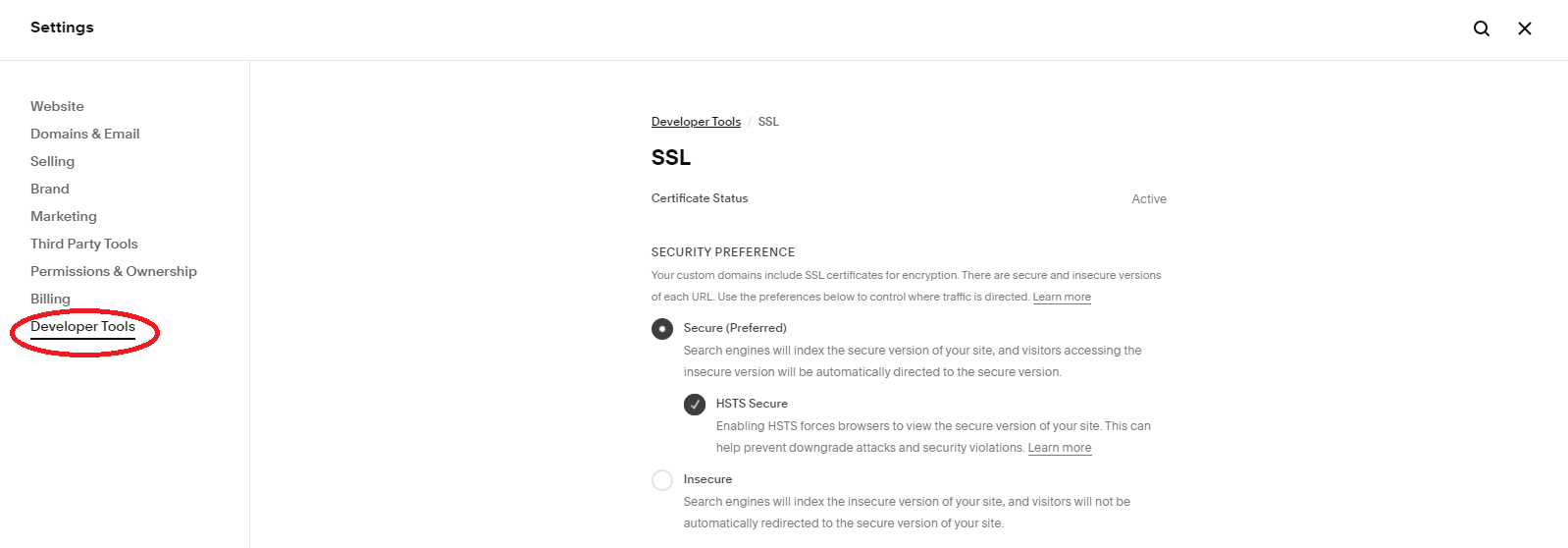
Squarespace stores come with a secure sockets layer (SSL) certificate automatically. However, site security may be disabled in your settings. Google strongly recommends securing your website to protect the security and privacy of your customers. Check the SSL panel to confirm that your site has been secured and select HSTS Secure to ensure potential visitors can only view the secure version of your site.
Make Sure Your Domain Name Is Optimized
The name you originally used for your Squarespace website may have been based on your own name or the name of your brand. However, updating your domain to include relevant keywords could help potential customers find your website more easily through organic search.
For example, the fictional domain www.nypediatricdentistry.com includes the keyword “ny pediatric dentistry.” Internet users who are looking for a pediatric dental practice in New York are much more likely to come across this website by chance than a pediatric dental practice with a domain name like www.johnsmith.com.
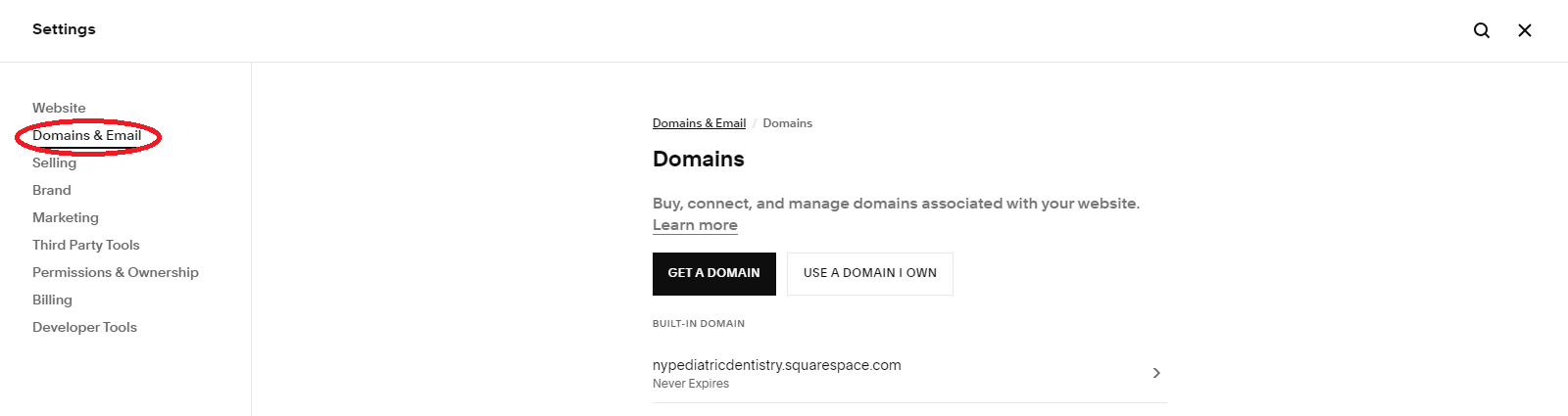
How to change your domain name in Squarespace: You can change your domain name in Squarespace by going to “Settings” > “Domains & Email” > “Domains.”
Make Sure Your Navigation Titles Are User-Friendly
Navigation titles should be short, link to key commercial pages, and provide an accurate idea of the contents of each target page. This is important for user experience (UX). A site structure that is clearly labeled and follows a logical hierarchy of pages also makes it easier for Google to understand your area of expertise and crawl and index the various pages of your website effectively.
Our fictional pediatric dental practice, for example, might include the following navigation titles on the homepage menu:
Routine dental checkups
Preventative dental treatments
Cavity fillings
Orthodontics
Emergency dentistry
About us
Contact us
Book an appointment
Blog
Check that Your NAP Information Is Easy to Find and Up-to-Date
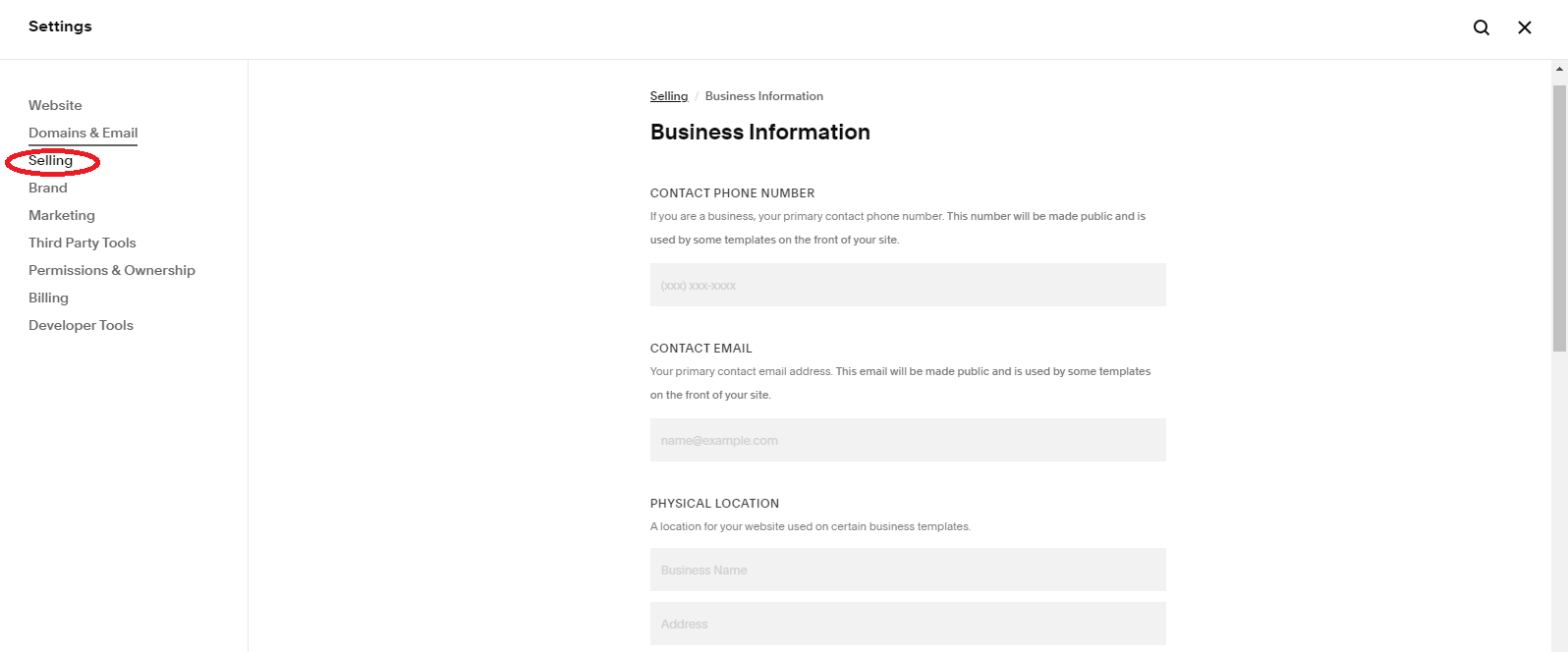
Providing prominently displayed “name, address, and phone number” information on your Squarespace website (such as in the header or footer) builds trust with potential customers and is great for local SEO. Include helpful information like an interactive map, directions for getting to your location, and your contact hours if a phone number is provided. Go to “Settings” > “Selling” > “Business Information” to add your address and contact details.
Add a Blog
An onsite blog is essential for showing internet users and search engines your areas of expertise and demonstrating that you are knowledgeable about your products and services. A blog also provides multiple opportunities to connect with potential customers who are still in the research stage.
Squarespace allows website owners to add multiple blogs (“Blog Pages”) to their websites, each with multiple individual posts. To add a blog, go to the “Pages” panel, click on the + icon, go to “Collections,” and click on “Blog.”
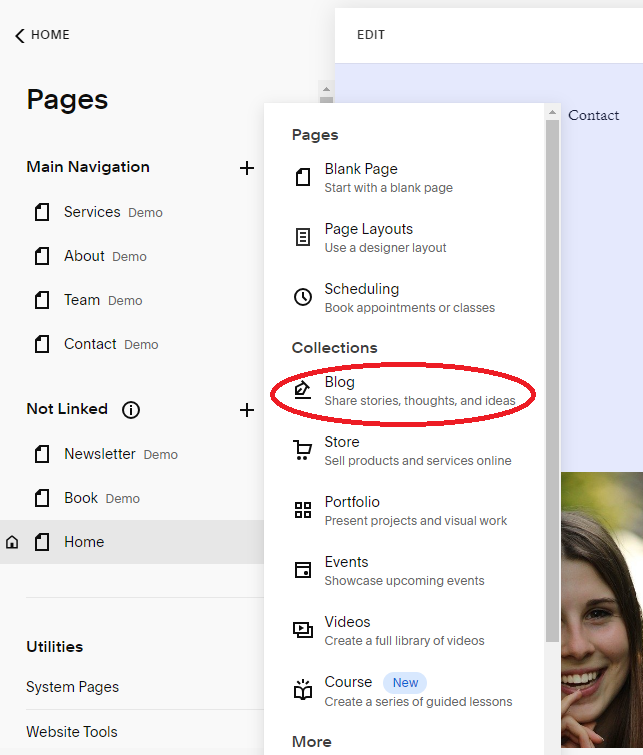
You will then be prompted to select a layout for your blog and give your blog a title (“page title”).
Improve the Effectiveness of Your Onsite Blog
Website owners who already have a blog on their Squarespace site should focus on improving the effectiveness of their blog. This is a topic in and of itself. However, the following strategies will make a big difference:
Add a Blog Post Author’s Bio or Improve Your Existing Bio
Your author signature is key for establishing E-E-A-T (experience, expertise, authority, and trustworthiness), which is used by Google’s human search quality raters. The additional “E” for “experience” was introduced in December 2022 as an update to the original E-A-T concept that Google introduced in 2014. Squarespace store owners must take this new criterion into account if they want their pages to rank well.
Develop a Content Strategy that Involves Pillar Pieces and Topic Clusters
Pillar pieces are blog articles that provide a broad overview of a key topic. These pieces should educate your target customers about your main product or service offerings. Topic clusters then consist of blog articles that explain aspects of these key offerings in more detail.
For example, a pediatric dental office should create pillar pieces for each of its main services (such as checkups, dental cleanings, fluoride treatments, dental sealants, fillings, emergency dentistry, and orthodontics). Each topic cluster would then include a series of articles that explain additional questions relating to each of these services, such as the benefits, pros and cons, cost, and how one treatment compares to another.
Use a Logical Structure for Headings
The main article heading of each blog post should be tagged as H1. You will then use H2 and H3 tags to organize the sections and subsections. Store owners who are on Squarespace version 7.1 can also use H4s.
Using headings and subheadings breaks up the article text and makes it easier for web users to read (especially on mobile devices). Correctly formatted headings also highlight the most important information in each article to search engines so that they can more easily display the most relevant part of the article in featured snippets and “People also ask” answers.
Use Internal and External Links Strategically
Every blog post should include a link to the relevant commercial page, a link to one or more related blog articles, and at least one link to a high-authority external page that supports the main thrust of the article. Listicles should link to all of the products or services featured in the article (preferably supported with images).
Keyword-Optimize Your Blog Articles
Keyword-optimizing your blog articles is critical for showing Google the relevance of your articles to internet users and increasing the chance that they will rank in organic search. Performing keyword research before you start to write will also help you identify topics that a decent number of internet users are actually searching for.
You can perform keyword research at a very basic level using Google autosuggest, “People also ask” questions, and the “People Also Search for” section at the bottom of SERPs. There are also free tools like Google Keyword Planner (part of Google Ads) and Ubersuggest as well as paid tools like Ahrefs.
Improve Your Internal Linking Strategy
An effective internal linking strategy keeps visitors on your website longer and helps search engines crawl your Squarespace site more effectively. Each product or service page should contain internal links to its umbrella sub-category and category pages, and products or services that are intended to be used together should include links to each other on the individual pages.
Make Sure You Have a Custom 404 Error Page (If You Haven’t Already)
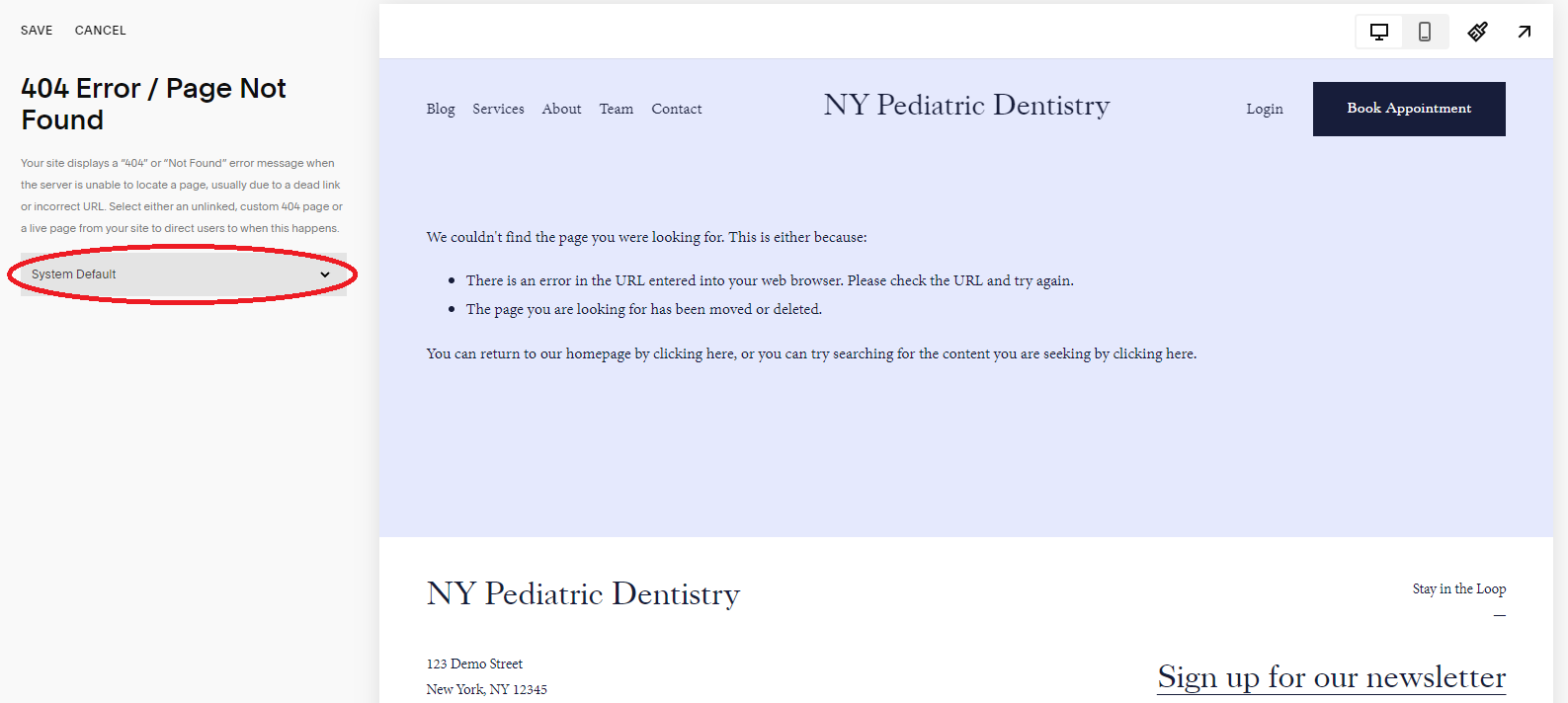
Squarespace allows website owners to create their own custom 404 error page to display to internet users when a link they click on is broken. You can take advantage of this option to improve the user experience (as opposed to a generic error message) and direct the user to another popular page or your contact page so they can ask you their question directly.
To create a custom 404 page on Squarespace, go to the “Pages” panel and select “System Pages” under the Utilities heading. Then, select “404 Page.” Choose the page you prefer in the dropdown menu (System Default, Home, Blog, or New Page) and click “Save” in the top left-hand corner of the screen.
Improve Your On-Page SEO
The following improvements can help your individual pages rank better in organic search.
Make Sure You’re Targeting the Right Keywords
Your home page, product pages, and category pages need to be keyword-optimized just like your blog articles. The most effective keywords for commercial pages are as follows:
Home page: Your target keyword should describe the type of products or services you offer and your location (if relevant). For example: “new york pediatric dentistry.”
Category page: The target keyword should describe the category broadly enough to capture a wide audience and narrowly enough to avoid competing against large providers if you sell common household goods. For example: “preventative dental treatments” (service provider category page) and “pediatric toothbrushes” (product category page) as opposed to simply “toothbrushes”
Product or service page: The target keyword should include the exact name of the product or service (if well known) or a short description (if not well known). For example: “cavity fillings” (well known) rather than “composite resin fillings” or “glass ionomer fillings” (not as well known)
Improve Your Title Tags and Meta Descriptions
Check that your title tags are the right length and provide as much information about the target page as possible. Commercial page title tags should include words like “for sale” or “services” and key value propositions, and blog title tags should include the full search query and additional information if it fits.
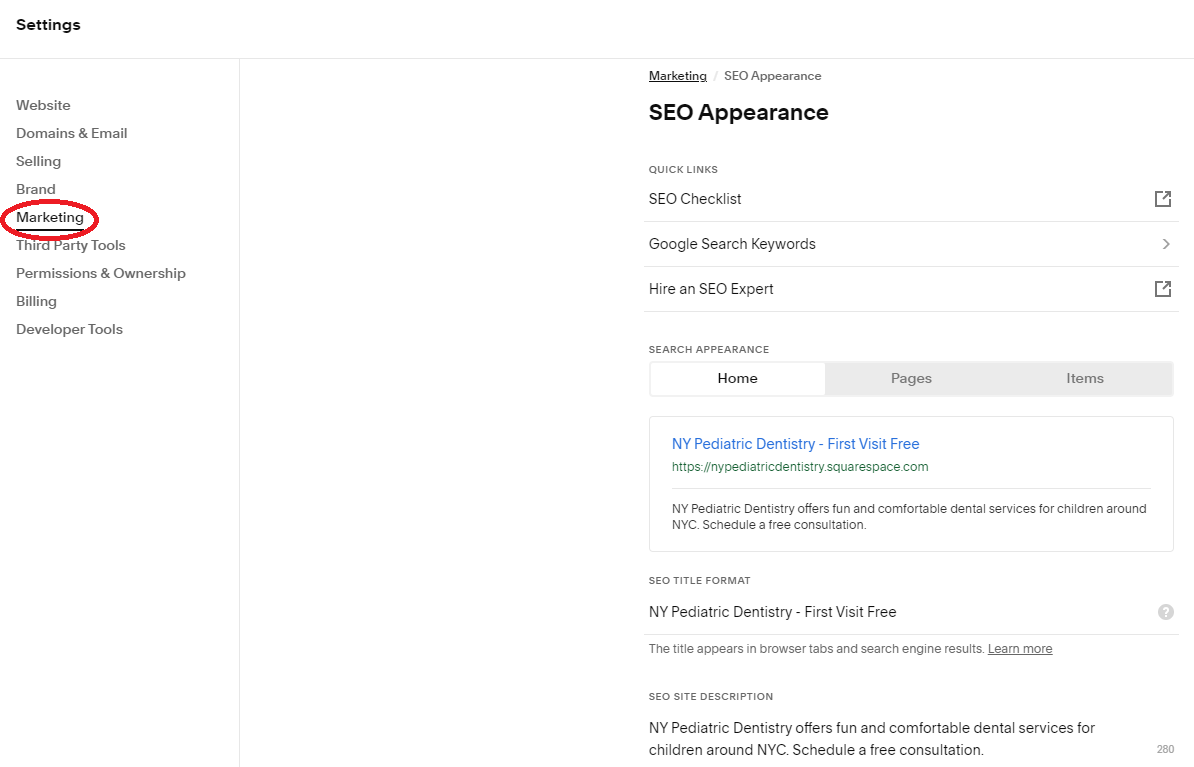
Home Page Title Tag:NY Pediatric Dentistry - First Visit Free
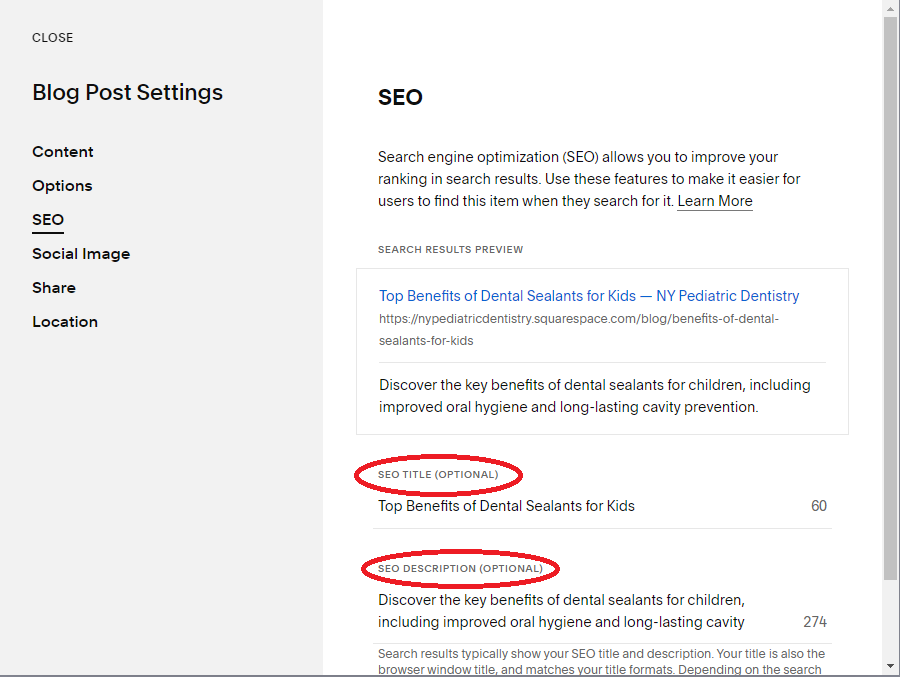
Blog Post Title Tag:Top Benefits of Dental Sealants for Kids
Please note: Title tags are different from page titles. Page titles are displayed on your Squarespace site. Title tags are displayed in search results.
Effective meta descriptions should summarize the main information on the destination page and include a call to action (CTA) to boost click-through rates.
Home Page Meta Description: NY Pediatric Dentistry offers fun and comfortable dental services for children around NYC. Schedule a free consultation.
Blog Post Meta Description: Discover the key benefits of dental sealants for children, including improved oral hygiene and long-lasting cavity prevention.
How to update title tags and meta descriptions in Squarespace: Update your title tags and meta descriptions by clicking on the page name at the top of the page and clicking on SEO in “Page Settings” or “Blog Post Settings” (for a blog post). Then enter your desired title tag and meta description text.
To update the title tag and meta description of your homepage, go to “Home” > “Settings” > “Marketing” > “SEO Appearance.”
Improve Your URL Slugs
Squarespace automatically generates clean and consistent URLs for your website. However, customizing your URL slugs is helpful for SEO when the automatically generated URL doesn’t include your target keyword.
To create a custom URL, click on the page name at the top of the screen to go to “Page Settings.” Then look under the “General” section for the field marked “URL slug.” Enter your desired URL slug (the last part of the URL) and click “Save.”
You can edit the URL slug of a blog post by opening “Blog Post Settings,” clicking on “Content,” and editing the Post URL.
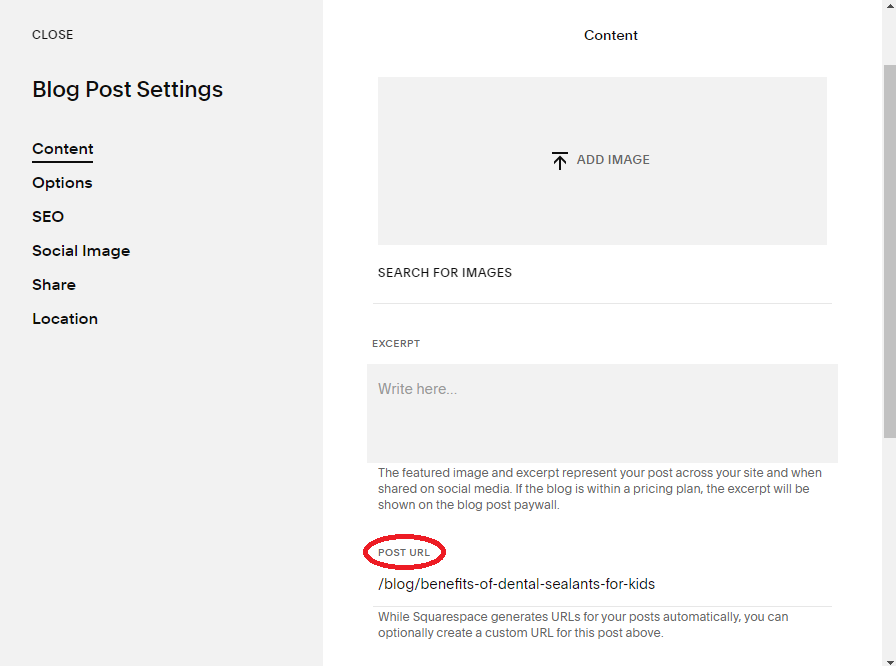
Please note that you can change the default format of your blog post URLs by going to “Settings” > “Website” > “Blog Preferences” > “Post URL Format.” Hover your mouse over the question mark next to the Post URL Format field to view a list of variables you can add.
Improve Image Alt Text and File Names
Image alt tags improve accessibility for internet users, are displayed if an image doesn’t load, and are also displayed as captions if someone pins the image to Pinterest. Alt text should be written with accessibility in mind (i.e. describe the image accurately) and should include your target keyword only if it can be worked naturally into the description. Descriptive file names help search engines understand your images and display them in image search results.
To add alt text and change image file names in Squarespace: Click on the image. Then click on the pencil icon. Enter your image alt text and change the file name to make it more descriptive.
Blog banner images in Squarespace display their file names as the alt text. You will need to enter your description using hyphens to join the words when you save each image before uploading it to Squarespace.
Make Sure You’re Using Categories and Tags
Categories and tags are basic features in Squarespace. If you haven’t been using them, it’s time to start. Both of these features can be used to group products, blog posts, and gallery images and improve the user experience by helping website visitors find everything they are interested in in a single place. Categories and tags also give you more opportunities to feature in search results.
Improve Your Page Loading Speed
A fast page loading speed is considered alongside relevance when websites are ranked in search results. Customers have a short attention span and many will hit the “Back” button if your website doesn’t load in a few seconds.
Try the following to speed up your website:
Reduce your page size so that it is under 5 MB.
Keep images to less than 500 KB (the TinyIMG extension can help with this).
Limit the use of custom code snippets and external scripts.
Limit the variety of web fonts used on your website.
Experiment with the accelerated mobile pages (AMP) open-source framework for faster loading times on mobile devices. This may change the format of your pages, which is why it is best to test AMP before taking your changes live.
Tip: You can use Google’s PageSpeed Insights to test your page loading speed before and after making changes.
Make Sure Your Website Is Mobile-Friendly
Google uses mobile-first indexing, which means that the mobile version of your Squarespace website must offer a good user experience and be easy for Google bots to crawl in order for your pages to be indexed and rank well in SERPs.
All Squarespace websites are mobile responsive by default. This means that they have the same HTML code on both desktop and mobile but change the size of the page to match the device used. You can further improve the mobile-friendliness of your Squarespace website by testing your site using Google Lighthouse and applying any recommended changes.
Make Sure You’re Using Schema Markup
Schema markup helps Google pull key information from your pages and display this information as rich snippets in search results. Think of it as a labeling system for the key elements on each page to help Google find these elements more easily.
You will need to add code to your Squarespace pages manually to use schema markup. You can generate the required code using the Free JSON-LD Generator for SEO or a similar tool and then paste the code into the head section of the Squarespace page’s HTML document.
Improve Your Offsite SEO
Offsite SEO is just as important as onsite SEO for being found in organic search. There are three primary strategies for boosting offsite SEO:
Google Business Profile
Citations
Backlinks
1. Set Up Your Google Business Profile
Completing your Google Business Profile (GBP) gives Google key information about your business, including your hours, reviews, pricing, location, and contact details. Google can then display this information to internet users when they look up your brand in organic search. Research shows that 80% of internet users use the internet to find information about local businesses, so make sure your listing is complete and up to date!
2. Make the Most of Citations
Citations and mentions of your brand on other websites build brand awareness and help your reputation with search engines and internet users. It’s even better for SEO if the website that mentions your brand includes a link back to your website (because the link passes “equity” from the source website to yours). However, unlinked citations and mentions still help by increasing your brand’s visibility and hence trust in your company as a legitimate business.
You can encourage others to mention your brand by:
Getting press coverage for a significant business development or achievement
Social media competitions and giveaways (using your brand’s hashtag)
Reaching out to relevant “X best” listicles in your niche and suggesting the web host add your brand to their list
Remember: It’s more effective for SEO if you can get a brand mention and a backlink to your website. However, the mention still helps to build your online reputation (and may bring additional traffic to your website) even if it is unlinked.
3. Acquire Strategic Backlinks
Backlinks increase the authority of your domain in the eyes of Google and other search engines. However, all backlinks are not equal. You want backlinks from websites that are considered authoritative and that are highly relevant to your niche. Backlinks from unrelated websites will likely be considered “link spam” by Google and the link will be devalued.
To encourage others to link to your website:
Create “linkable assets” such as an informative PDF or industry survey that others will want to reference in their content.
Share links to your newest content on social media to make it easy for your followers to share the link with others (who might then decide to reference your content on their own websites).
Share your expertise by guest posting for relevant websites and include a link back to your website in the body text of the article or in the author bio. This helps with SEO by passing link equity to your website and could also bring new website visitors who are interested in your niche.
Take advantage of “help a reporter out” (HARO) opportunities by providing reporters with valuable insights from your area of expertise. The resulting news article might then mention your name and brand and potentially include a link back to your website.
Level Up Your SEO Game on Squarespace
The technical, onsite, on-page, and off-page SEO strategies covered in this guide require an investment of time, effort, and potentially finances (especially if you partner with an expert SEO agency or hire writers). However, ranking better in organic search will almost always lead to significant increases in traffic and revenue.
Begin by identifying the SEO techniques you are already using and the ones that need more attention. Then implement one or two of the strategies from this list until they become part of your workflow before introducing more. Remember that SEO audits, content creation, optimization, and link building are things you need to do regularly. You may need to change your strategy if something isn’t working well or there is an update to Google’s guidelines. Create a comprehensive SEO strategy, persevere and refine your strategy as needed, and reap the rewards!
